Getting Started
Welcome to Homeschool Scheduler! This guide will help you set up your first student, add a curriculum, and create a task in just a few minutes.
Quick Start
Get up and running in under two minutes:
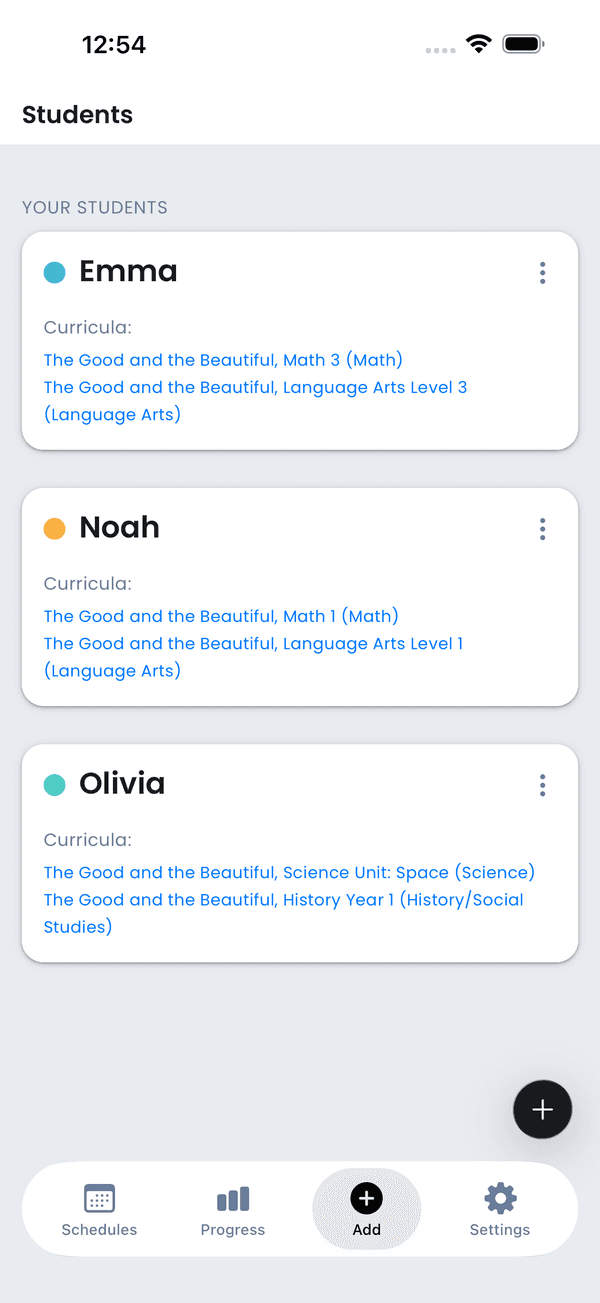
- Add a student — Open the app, go to the Students tab, tap +, type a name, pick a color, and tap Save.
- Add a curriculum — On your new student's card, tap the menu (⋮) → Add Curriculum. Search for a curriculum (e.g., "Saxon Math") or tap Create custom curriculum to make your own (enter a name, subject, and total number of lessons). Set your start date, school days, and lessons per day, then tap Save.
- Add a task — On your student's card, tap the menu (⋮) → Add Task. Give it a subject (e.g., "Piano Practice"), pick a date, set a coin reward, and save.
That's it — your student now has lessons on their schedule and a task to complete today. Head to the Day or Tasks view to see everything laid out.
Detailed Setup
Step 1: Add Your First Student
When you first open the app, head to the Students tab. Tap the + button to add a new student.
- Name — Enter your student's name (required)
- Grade — Optionally add their grade level
- Color — Choose a color to identify this student throughout the app
- Icon & Avatar — Pick a fun icon or avatar for your student's profile
- Notes — Add any notes about your student (learning style, accommodations, etc.)
Adding a new student screen
Step 2: Add a Curriculum
Once you have a student, tap the three dots menu (⋮) on their card and select Add Curriculum.
- Search or browse the curriculum database for popular homeschool curricula
- Select a curriculum that matches your needs
- Or tap Create custom curriculum if yours isn't listed — just enter a name, subject, and total lesson count
Step 3: Configure Your Schedule
After selecting a curriculum, you'll configure the schedule:
- Start Date — When to begin this curriculum
- End Date — Target completion date
- School Days — Which days of the week you'll do lessons
- Lessons Per Day — How many lessons to schedule each day
- Coins Per Lesson — How many coins the student earns for completing each lesson
The app will automatically distribute lessons across your school days, accounting for any holidays or breaks you've configured.
Step 4: Add a Task
Tasks let you assign work beyond regular curriculum lessons — chores, reading goals, practice, or anything else.
- On a student's card, tap the menu (⋮) and select Add Task
- Enter a subject (e.g., "Chores", "Reading", "Piano Practice")
- Set a date and coin reward
- Assign it to one or more students
- Optionally set it to recur daily, weekly, or on custom days
Step 5: Start Learning!
Your schedule is now set up. Navigate to the Day view to see today's lessons and tasks, or switch to the Tasks view to manage work with drag-and-drop.
Tip: Use the Progress tab to track completion and export reports for your records.