Curriculum Schedules
Schedules are the heart of Homeschool Scheduler. Each schedule connects a student to a curriculum and distributes lessons across your chosen school days.
Creating a Schedule
From a student card, tap the menu and select Add Curriculum:
- Select Curriculum — Browse or search the database, or create a custom one
- Set Date Range — Choose start and end dates for this curriculum
- Choose School Days — Select which days of the week to schedule lessons
- Every N Weeks — Set
2for every other week,3for every third week, and so on - Lessons Per Day — How many lessons to do each school day
- Starting Lesson — If resuming a curriculum, set where to start
- Coins Per Lesson — How many coins the student earns for each completed lesson (1–100)
Browsing the Curriculum Database
The curriculum database contains hundreds of popular homeschool curricula. You can:
- Search by name to find a specific curriculum
- Filter by subject (Math, Science, Language Arts, etc.)
- Filter by grade level to narrow results
Can't find what you need? Use the Suggest a Curriculum button to let us know what you'd like added to the database.
Custom Curricula
If your curriculum isn't in the database, create a custom one:
- Tap Create Custom in the curriculum selector
- Enter the curriculum name
- Select or type a subject
- Specify the total number of lessons
Understanding Automatic Scheduling
The app automatically distributes lessons based on your settings:
- Lessons are assigned to your selected school days
- Multi-week schedules only place lessons on the chosen weeks in that cadence
- Holidays and breaks are automatically skipped
- The schedule extends as needed to fit all lessons
- When you change settings, the schedule recalculates automatically
Editing a Schedule
From the Progress tab, find the schedule card and tap the menu to select Edit. You can modify:
- Total lessons (if the curriculum length changed)
- Starting lesson number
- Date range
- School days
- Every-N-weeks cadence
- Lessons per day
- Coins per lesson
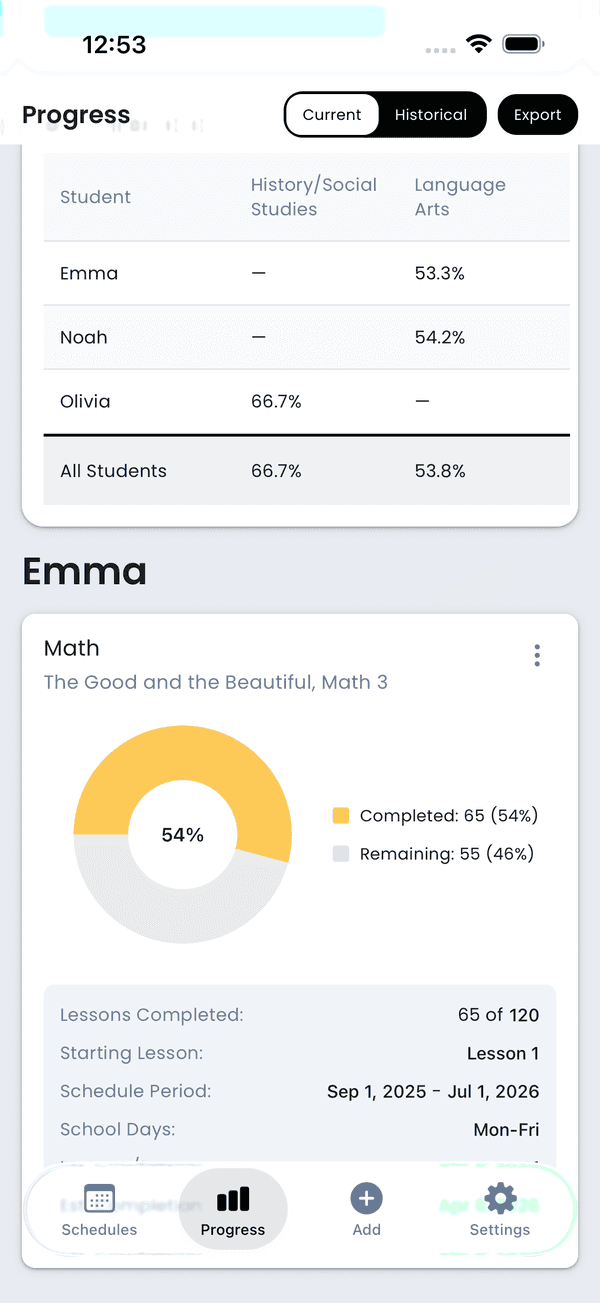
Editing a schedule
Combined Lessons (Multi-Student)
When assigning a curriculum to multiple students at once, you'll see a Combined Lesson toggle. When enabled, the schedule shows one shared lesson card for all selected students instead of separate cards for each student. This is useful for subjects where siblings learn together (e.g., a family science curriculum or group read-aloud).
- On — One card appears on the calendar representing all students. Completing it marks the lesson done for everyone.
- Off — Each student gets their own independent lesson card, completed separately.
Pacing & Labels
For more advanced schedule configuration, see Lesson Labels & Units and Pacing Options.