Student Management
The Students tab is your central hub for managing all the learners in your homeschool. Each student can have multiple curricula assigned to them.
Adding a Student
Tap the + floating button at the bottom right of the Students tab. Fill in the student details:
- Name — Required. The student's name as it will appear throughout the app.
- Grade — Optional. Helps when searching for appropriate curricula.
- Color — Choose from the available colors to help visually identify this student in calendars and progress views.
- Icon & Avatar — Select a fun icon or avatar that appears on the student's card and throughout the app.
- Notes — Add any relevant notes about the student, such as learning style preferences, IEP accommodations, or other details you want to remember.
Editing a Student
To edit a student's information, tap the three dots menu (⋮) on their card and select Edit Student. Changes are saved automatically when you tap Done.
Student Colors
Each student can be assigned a unique color. These colors appear:
- On the student card as a colored circle
- In calendar views to identify which student has lessons
- In progress charts and reports
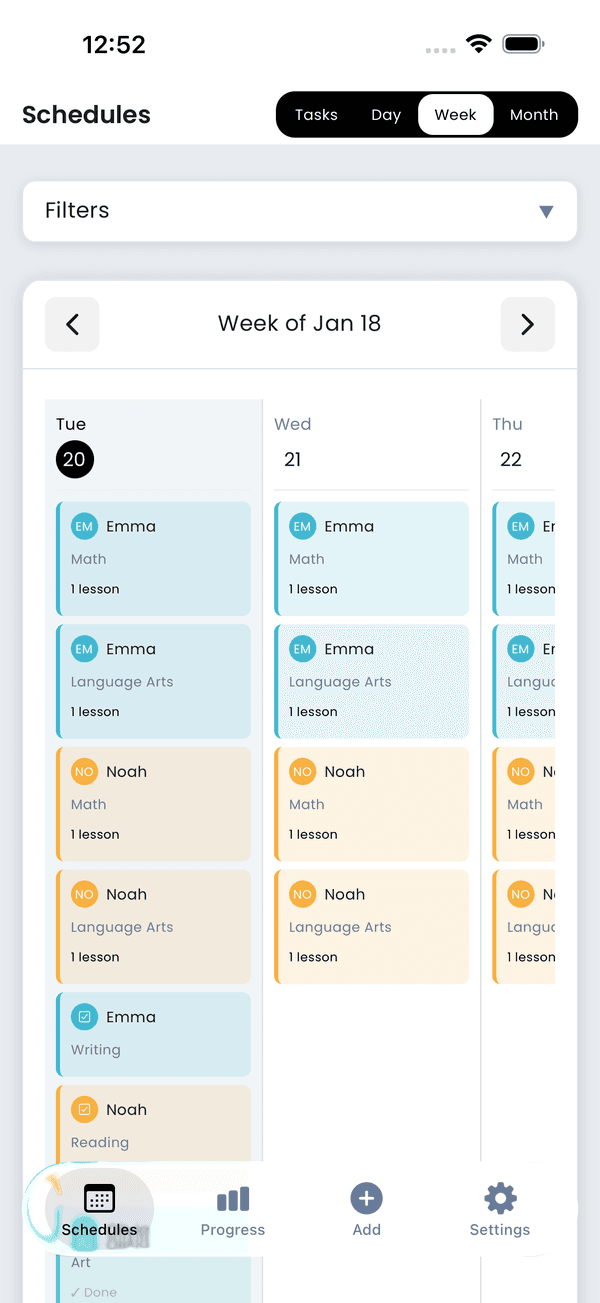
Student color selection
Coin Balance
Each student's current coin balance is displayed on their card. Tap the balance to view their full coin history. See Rewards & Coins for details on earning and spending coins.
Students / Rewards Toggle
The Students tab has a toggle in the header to switch between two views:
- Students — The default view showing student cards, their schedules, and quick actions.
- Rewards — Switches to the coin history dashboard with balances, transaction history, the Reward Shop, and manual coin adjustments. See Rewards & Coins for details.
Deleting a Student
To delete a student, tap the three dots menu and select Delete Student. This will also delete all schedules associated with that student.
Warning: Deleting a student cannot be undone. All their schedules and progress data will be permanently removed.